FAQ for Canon PRINT Inkjet/SELPHY - Canon Pixma Inkjet Print
Read frequently asked questions about Canon PRINT Inkjet/SELPHY.
-
Printing Web Pages
Follow the steps below to print web pages.
Printing from iPhone/iPad/iPod touch (iOS/iPadOS)
The following procedure is an example for iOS 12.1.
-
Check that printer is turned on.
-
Load paper in printer.
-
In Safari, tap
 (Share).
 -
Tap
 Print.
 -
From Printer in Printer Options, select your printer.
-
Check print settings.
Specify the number of copies to print and other print options as needed.
-
Tap Print.
Printing starts with the specified settings.
Printing from smartphone/tablet (Android)
The following procedure is an example of printing from Google Chrome, a Web browser for Android 8.0.
-
Check that printer is turned on.
-
Load paper in printer.
-
Tap
 (More).
 Note
Note- The (More) design may vary depending on your smartphone or tablet.
- The
-
Tap Share....
-
Tap
 PRINT.
Canon PRINT Inkjet/SELPHY starts.
-
Tap Next.
-
Set print area and tap OK.
-
Check print settings.
Specify the number of copies to print and other print options as needed.
-
Tap Print.
Printing starts with the specified settings.
-
-
Edges of Photos Are Cut Off when Printed
By selecting Bordered for Border, you can add margins around the photo and print it without cutting off the edges.
Alternatively, you can adjust the print area by cropping the photo to the specified paper size.
This section describes how to crop and print photos based on the screens displayed when using Android 8.0.
Note- If the aspect ratio of the photo and paper is the same, you can print the photo on the entire sheet by selecting Borderless for Border; however, the edges of the photo will be partially cropped since it is slightly enlarged when printed.
-
In Print Preview screen, tap Print Settings, and then select the paper size that matches the loaded paper.
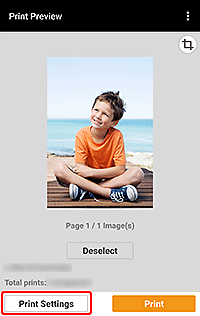
-
Return to Print Preview screen, and then tap
 (Crop).
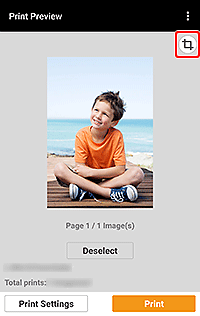 Note
Note- If multiple photos are selected, tap the thumbnail of the photo you want to crop, and then tap (Crop).
- If multiple photos are selected, tap the thumbnail of the photo you want to crop, and then tap
-
Move or enlarge/reduce the photo to adjust the print area.
-
Tap OK.
-
Specify print settings, and then tap Print.
Printing starts with the specified settings.
-
The Printer Is Not Found
If the printer is not found, perform the following.
- Check 1 Enable Wi-Fi on your smartphone or tablet.
- Check 2 Enable Wi-Fi on the printer.
- Check 3 Check that your smartphone or tablet is connected to the same wireless router as the printer.
- Check 4 If you are using iOS/iPadOS 14 or later, open your smartphone/tablet's settings, select Privacy > Local Network, and then grant local network access to PRINT.
* Descriptions are based on iOS 14.
- Check 5 Restart your smartphone or tablet.
- Check 6 Bring the wireless router, printer, and your smartphone or tablet closer together.
- Check 7 Restart the wireless router.
If the printer is still not found after performing the above operations, perform the following operations.
- Restart the printer.
- Turn off any other wireless devices nearby.
- If the printer's Wi-Fi has not been set up, return to the Canon PRINT Inkjet/SELPHY screen, and then connect the printer to a network.
-
Deleting Network Information Saved in App
-
Open menu at upper right of screen.
-
iOS/iPadOS
Tap
 (Menu).
 -
Android
Tap
 (Menu).
-
-
Tap Delete Network Information.
A confirmation screen for deleting network information appears.
-
Tap Yes.
-
-
Cannot change the printer's Wi-Fi settings (iOS/iPadOS 14 and later)
-
Open your smartphone/tablet's settings, and select Privacy > Location Services > PRINT.
-
Select While Using the App, and turn on Precise.
* Descriptions are based on iOS 14.
-
-
Cannot Print Photos on SD Card (Android)
Follow the steps below to print photos saved on an SD card.
The following procedure is an example of printing from Google Photos, a photos app for Android 8.0.
Note- Google Photos may not be available depending on your country or region.
-
Tap
 Photos.
 -
Select photo(s).
-
Tap
 (Share).Note
- The (Share) design may vary depending on your smartphone or tablet.
- The
-
Tap
PRINT.Canon PRINT Inkjet/SELPHY starts.
Check the print settings and start printing.
-
Thumbnails of Photos Are Displayed in Landscape Orientation (Android)
In the Select Images screen, the thumbnails of the photos shot in portrait orientation may be displayed in landscape orientation; however, they are printed in portrait orientation.
-
Screen Asking for Permission to Obtain Location Appears in Android App
When performing setup or other operations in the app, it searches for a wireless router or printer.
Due to a restriction of the Android operating system, the app cannot search for a wireless router or printer unless you allow the app to obtain location.
When performing setup or other operations, please allow the app to obtain location.
The information obtained will not be used to personally identify you.
https://ij.manual.canon/