
Printing Directly from Smartphone/Tablet
-
Using Printer with Wireless Direct - Canon Pixma Inkjet Print
You can connect devices (e.g. smartphone or tablet) to the printer by two methods below.
- Wireless connection (connecting devices via a wireless router)
- Direct wireless connection (connecting devices using wireless direct)
This section describes wireless direct, which allows you to print by connecting the devices to the printer directly.
Follow the procedure below to use wireless direct.
-
Enable wireless direct.
-
Connect devices to printer.
-
Perform printing operation.
This section also describes changing wireless direct to wireless LAN.
- Changing Printer Setting to Use Wireless LAN
 Important
- You can connect up to 5 devices to the printer at the same time.
-
Check the usage restrictions and switch the printer to the wireless direct.
- Restrictions
Preparing for Wireless Direct
Change settings below to prepare for wireless direct.
-
Printer's LAN settings
- Changing Printer's Settings
-
Settings of a device to connect
- Changing Settings of a Device and Connecting It to the Printer
Changing Printer's Settings
-
Make sure printer is turned on.
-
Press and hold the Wi-Fi button and release it when the Wi-Fi lamp flashes.
-
Press the Black button.
The ON lamp flashes and the Wi-Fi lamp lights.
-
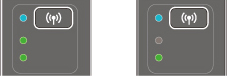
Press the Wi-Fi button repeatedly until the Direct lamp lights.
When the lamps light as below, wireless direct is enabled.
-
Press the Color button or the Black button to finalize selection.
 Note
Note-
To check the printer's MAC address and serial number, and the current wireless direct settings, print out the network setting information.
- Printing Network Settings
Changing Settings of a Device and Connecting It to the Printer
-
Turn on wireless communication on your device.
Enable "Wi-Fi" on your device's "Setting" menu.
For more on turning on wireless communication, see your device's instruction manual.
-
Select "XXXXXX-MG3000 series" ("XXXXXX" represents last six digits of printer's MAC address.) from list displayed on device.
Note-
If "XXXXXX-MG3000 series" does not appear on the list, wireless direct is not enabled.
See Changing Printer's Settings to enable wireless direct.
-
-
Enter password.
Your device is connected to the printer.
Note-
Check the password for the wireless direct.
- Printing Network Settings
- Depending on the device you are using, entering the password is required to connect a device to the printer via wireless LAN. Enter the password specified for the printer.
-
Printing with Wireless Direct
Connect a device and the printer and start printing from the device's application.
Note- For more on printing from a device via wireless LAN, refer to the device's or application's instruction manual.
-
You can print from your smartphone or tablet by installing Canon PRINT Inkjet/SELPHY. Download it from App Store and Google Play.
- For iOS
- For Android
Changing Printer Setting to Use Wireless LAN
Follow the procedure below to change the printer setting to use wireless LAN.
-
Make sure printer is turned on.
-
Press and hold the Wi-Fi button and release it when the Wi-Fi lamp flashes.
-
Press the Black button.
The ON lamp flashes and the Wi-Fi lamp lights.
-
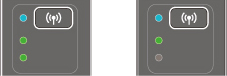
Press the Wi-Fi button repeatedly until the Network lamp lights.
When the lamps light as below, wireless LAN is enabled.
-
Press the Color button or the Black button to finalize selection.
https://ij.manual.canon/